

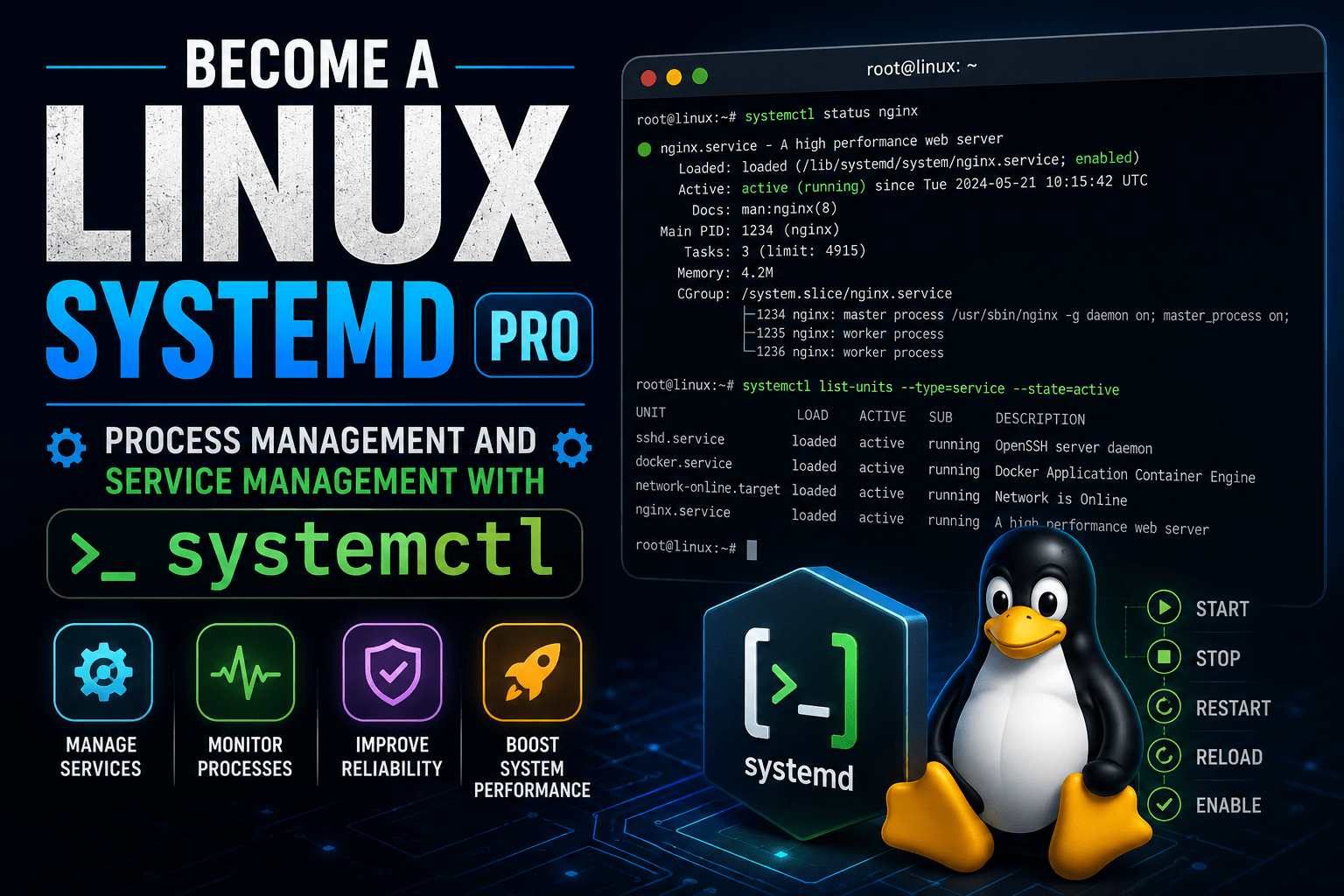
Master Linux Systemd: Complete Guide to Process & Service Management with systemctl
Last night I had an opportunity to troubleshoot a website with issues (not able to stay available). My troubleshooting included seeing some questionable status codes associated with the problem.
I’m certainly frustrated by this and I’m going to feel either helpless or overwhelmed with an overload of data when nothing seems to go right. I have found the fix for this issue, and will teach you how to do it, so you will never be left to wonder what caused your machine to fail again.
In this ‘Linux SystemD Tutorial’, I will show you how to manage your computer’s background running applications with SystemD to take the guesswork out of why your computer crashed.
Quick Reference Guide
- Defect: Background apps not being able to be started or remain running.
- Solution: Employ a proper Linux systemd tutorial for configuration of units.
- Applicability: Standard commands, such as systemctl, and easy configuration files.
Introduction to Modern Management of Linux Services
Modern Linux is much more exciting than historical versions of Linux. Remember in the “early days” of Linux how terrible it was?
- Bad applications took so long just to load.
- Many scripts had no common format between users.
- Debugging problems took forever!
Why the Linux System Initialization (Systemd) Has Changed
With previous versions of Linux, it took too long to run scripts sequentially; so, booting a server took a long time.
Simple Explanation of Systemd
It can be thought of as the master controller.The process of starting all other installed applications begins with systemd. Its way of being explained simplifies all aspects of using an Operating System that relies on systemd.
The Role Systemd Plays on Linux Servers for the Future
Currently all desktop and server distributions use systemd as default – examples being Ubuntu, Debian, and Red Hat. With the continuing introduction of more and more complex types of Servers, systemd has become the central component to modern Operating Systems.
What This Guide Will Allow You To Accomplish
You will no longer have to guess what caused your applications to crash or stop responding, you will be creating and managing your own custom configuration files, and solidifying your servers.
The Common Theme: The Transformation of Linux Process Management
Initially, I was against the thought of changing how I have always configured operating systems. I did not want to learn new scripts, it is annoying to think about. However, my previous way of Installing was, without any question, not functioning.
- There were no standardization within the legacy init scripts.
- Tracking the crash of an application was impossible.
- Linux Process Management had to be completely overhauled.
Limitations of Legacy Init Systems
SysVinit was simply a large collection of shell scripts. Upstart tried to resolve these issues but failed. Both of these running processes agreed that they had no way to track the dependencies involved while managing the various running processes.
How systemd Resolves Boot Order and Dependency Issues
The systemd project knows which applications are supposed to run when, and it can launch multiple applications at the same time, greatly shortening the time to boot.
The Core Systemd Architecture Behind Each system Unit
All of the unified processes running on an Operating Systems are configured through a unit file that is defined within systemd. A unit could be either a timer or a socket and by knowing this, troubleshooting becomes more manageable.
Understanding the Difference Between Systemd Services and Other Types of Units
In today’s environment, we are most concerned with services. These services are applications that will run continuously for an extended period of time. These would include an HTTP server and a Database server.
How systemd Improves Server Management WithinThe management of background tasks can get complicated when they moved their (background tasks) location. Linux has been organized in many ways to manage background services or tasks.
“systemd provides aggressive parallelization capabilities, uses socket and D-Bus activation for starting services.
Using systemd to Troubleshoot Services and Processes
I have tried many ways to stop all or remove the effects of background tasks. In the past, I have stopped processes manually, or run random commands or scripts to find a way to fix my servers, but they all have ended up making a negative impact on my server. To answer who can assist you troubleshoot your background services I would answer systemctl with its appropriate control commands.
- Do not use kill command.
- You need to verify the status of the service you want to control before you attempt to control it.
- You need to use the control commands the systemctl provides.
Essential systemctl Commands Every Admin Should Know
You need to master the core systemctl commands to use on a daily basis.
Starting, Stopping & Restarting Services with systemctl
To turn on a service, use the start command.
To turn off a service, use the stop command.
sudo systemctl start nginx
sudo systemctl stop nginx
systemctl restart nginx
Service Status Checking and Service Health By Service
You should be checking the service status. The service status will tell you if your service has failed. The text will show the service is “inactive” and the service is still “running”.
sudo systemctl status nginxListing/Filtering Active systemd Services Command Usage
You may need to see all of the active services on occasion (you can list all of the running systemd services very quickly).
sudo systemctl list-units --type=serviceEnable/Disable Services to Start on Boot Command Usage
By enabling a service, you are informing the computer to automatically start this service on booting the/your computer.
sudo systemctl enable nginxCreating System Service Files
The process of creating a service file in systemd, once was an intimidating foreboding task.In the past, I encountered some very minor errors while trying to set up systemd services. For example, I could not get my scripts to execute on startup because I would place the scripts in random directories; that I did not know were associated with systemd.
To correctly configure your service, you must create a properly named and structured unit file.
- Create a simple and easily identifiable service file name
- Configure your service file with an absolute path to the service binary
- Set the correct system user
Understanding Unit Files
In the service file, there are 3 sections: a Unit section, a Service section, and an Install section (each of which contain a different set of instructions). Unit files are used to specify the unit’s name, description, and dependencies; where as the Service section provides information about where to find the application’s executable and how to restart it, and the Install section identifies when and where to run this unit file.
File Location, Naming Convention, Permissions
You must create your service file in the /etc/systemd/system directory with a .service file extension.
Writing a Basic Service Unit File
The following is an example of a basic service file template.
[Unit]
Description=My Custom Node Application
After=network.target

[Service]
ExecStart=/usr/bin/node /var/www/app.js
Restart=always
User=www-data

[Install]
WantedBy=multi-user.target
Reloading the Daemon and Applying Changes
If you add new unit file(s) you must reload the daemon to have it read the new unit file(s) using the command below.
sudo systemctl daemon-reloadSchedule Your Services Using Systemd Timer
Cron is a thing of the past. You should use the system timer which is far superior and has much better error logging.
Troubleshooting Systemd Services
There are occasions when services break in a huge way and it really frustrates me.When things go wrong with your service, you have only one method of finding out what happened.
Start by checking your server logs to see if you have any issues that might be present.
If you have your server logs, use those to verify your configurations have the correct syntax.
Check the file paths to verify the files are where they should be.
When using journalctl logs to diagnose your services’:
You will always have the answer in the logs – this is why journalctl is your best friend: Journalctl.
To view the logs for your service, run:
sudo journalctl -u myapp.service -fTo verify your configs do not contain typos, use systemd-analyze.
Instead of guessing at your typos, run:
systemd-analyze verify myapp.serviceExit codes can tell stories; here are samples of some common exit codes:
Exit Code — Exit Status
1 – Failure (General failure, refer to the documentation of each application to find out what happened)
2 – Failure (Usually missing required configuration)
If you have dependency or ordering issues, consider the following:
Your database is the bottleneck for an application. So if your application does not connect quickly enough, you may have to adjust your After= lines so the service can be brought online in the proper order.
To get a deep inspection of your service, you may try the following to get raw data for every variable that systemd has for your services:
systemctl show myapp.serviceHere are some common misconfigurations are hidden by using the wrong data types:
Missing environment data will prevent your application from starting.
Incorrect file permission will possibly inhibit access to. Your file will not be able to start successfully due to incorrect data.
Race conditions can occur if you allow services to use parallel starting.
It’s generally a bad practice to run services as the root user. However, failing to put in the proper user information will cause the application to fail when it is attempting to start.Custom systemd Service Environment Variable Problems
You will not have access to your bash profile. You will need to define your variables straight from the .service file, using the Environment= line.
WantedBy vs RequiredBy—What is the Difference? (Frequently Confused)
WantedBy is soft; RequiredBy is hard. WantedBy generally means “for a standard web app”.
Race Conditions on Parallel Service Startup:
Two services are trying to start simultaneously, with one of them needing to acquire the same port as the other. They may both attempt to use that port at the same time, which can cause random service crashes at boot-up time.
Using Legacy Shell Scripts with systemd Compatibility Wrappers
Legacy Shell Scripts are a real pain to work with. You could use compatibility wrappers, but using compatible unit files would reduce the risk of system failures.
Conclusion: Mastering systemd for Reliable Linux Service Management
I learned a lot during this process. My servers are now much more stable compared with before I learned about this. My sleep has been greatly improved as a result.
You can see how much of a headache this can be to start with but, if you use the correct command line tools, you will be able to master your linux system with ease. This tutorial is yours.
Key Takeaways from This Guide
- Always double check your text status before checking the service status (i.e. use systemctl).
- Always remember to reload the background process manager.
- Always use journalctl to look at all of the logs.
- Always stop using legacy init scripts.
Let me know if you run into any problems. I’m happy to help you.
FAQs
What is systemd and why is it important for Linux?
It is a controlling process managing everything that runs in the background including web servers.
What are the common commands for using systemctl?
Start, Stop, Restart and Status; all commands to use in your daily server operations.
How do I create and enable a custom systemd service?
You create the unit-file before running daemon-reload and enable it.
What might be causing my systemd service to fail?
The most common reason is simply a typo. Use journalctl to check the logs.
What is the difference between systemd services and timers?
A systemd service is continuously running in the background. A timer is scheduled to run at a specific time.